LogStitch is a native macOS app that reads your AWS Lambda logs from CloudWatch and stitches them back into the invocations they belong to. It runs entirely on your Mac using your own AWS credentials — there's no LogStitch cloud in the middle. This guide walks a brand-new user from first launch to their first stitched invocation.
Before you start
LogStitch connects to your AWS account, so it's built for developers already working with AWS Lambda. You'll want:
- A Mac running macOS 26.1 or later (LogStitch is a Universal app — Intel and Apple Silicon).
- An AWS account with Lambda functions you want to look at.
- AWS credentials in one of three forms: an existing AWS CLI config (
~/.aws), an access key ID and secret access key, or SSO (IAM Identity Center). Any one works — pick whichever you already have.
That's the only real prerequisite. There's no account to create with us and no data leaves your machine. The free 14-day trial needs no signup and has no limits, so you can point it at a real account and click through the steps below right away.
Connect an AWS profile
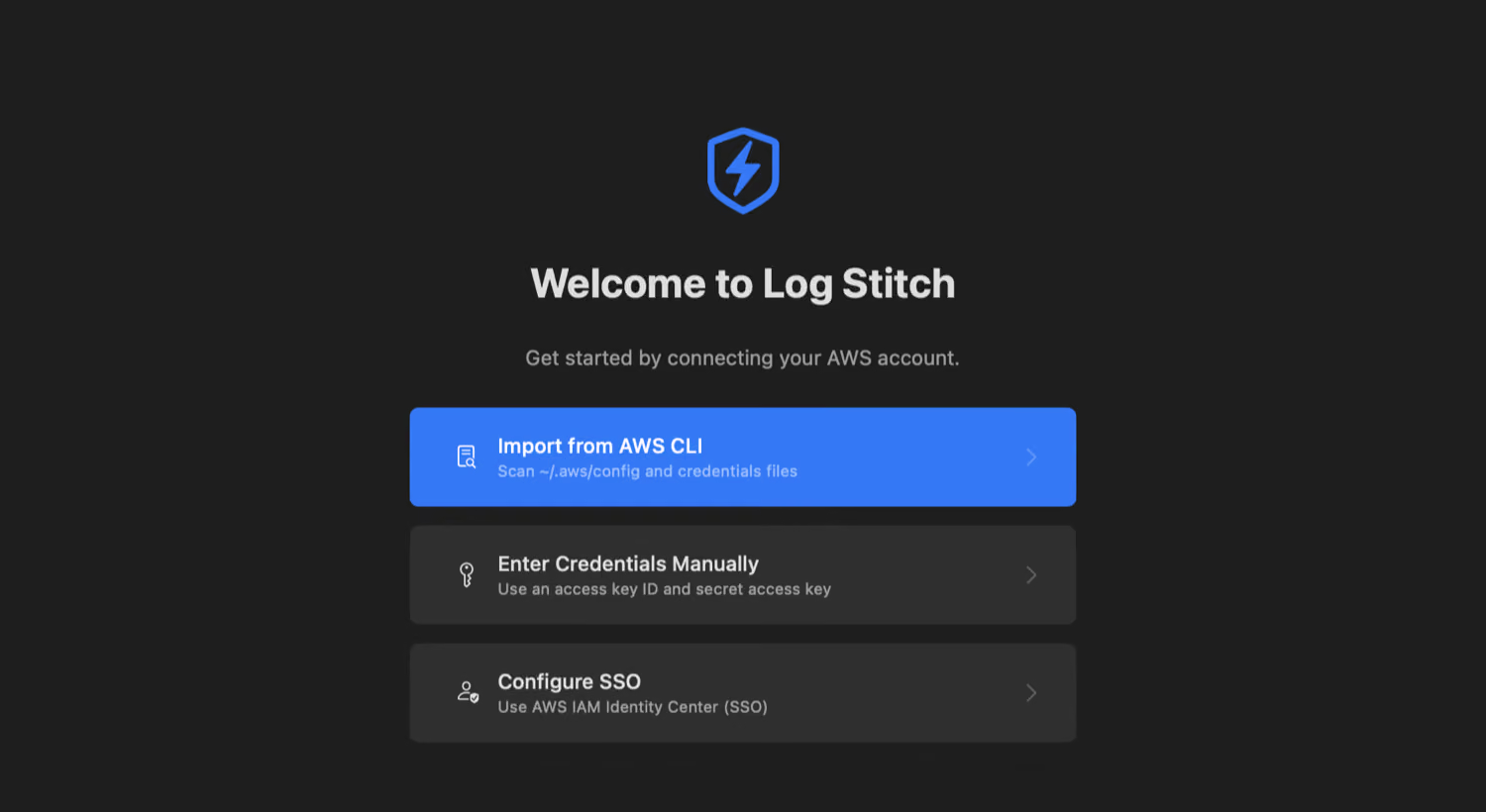
On first launch, LogStitch greets you with a Welcome screen offering three ways to connect. Choose the one that matches how you already access AWS:
Import from AWS CLI
Scans your existing ~/.aws/config and credentials files, lists the profiles it finds, and imports the ones you tick.
Enter credentials manually
Paste an access key ID and secret access key, pick a region, and go. A session token is optional.
Configure SSO
Connect with AWS IAM Identity Center (SSO). LogStitch runs the device-authorization sign-in for you.
Whichever you pick, LogStitch validates the credentials against AWS immediately and shows you exactly which account and identity you connected as, so you know it worked before moving on. If something's off, it explains what to fix in plain language instead of showing a raw error code. You can also give each profile a color (with smart suggestions like red for prod) so multiple accounts stay visually distinct.
Open the profile
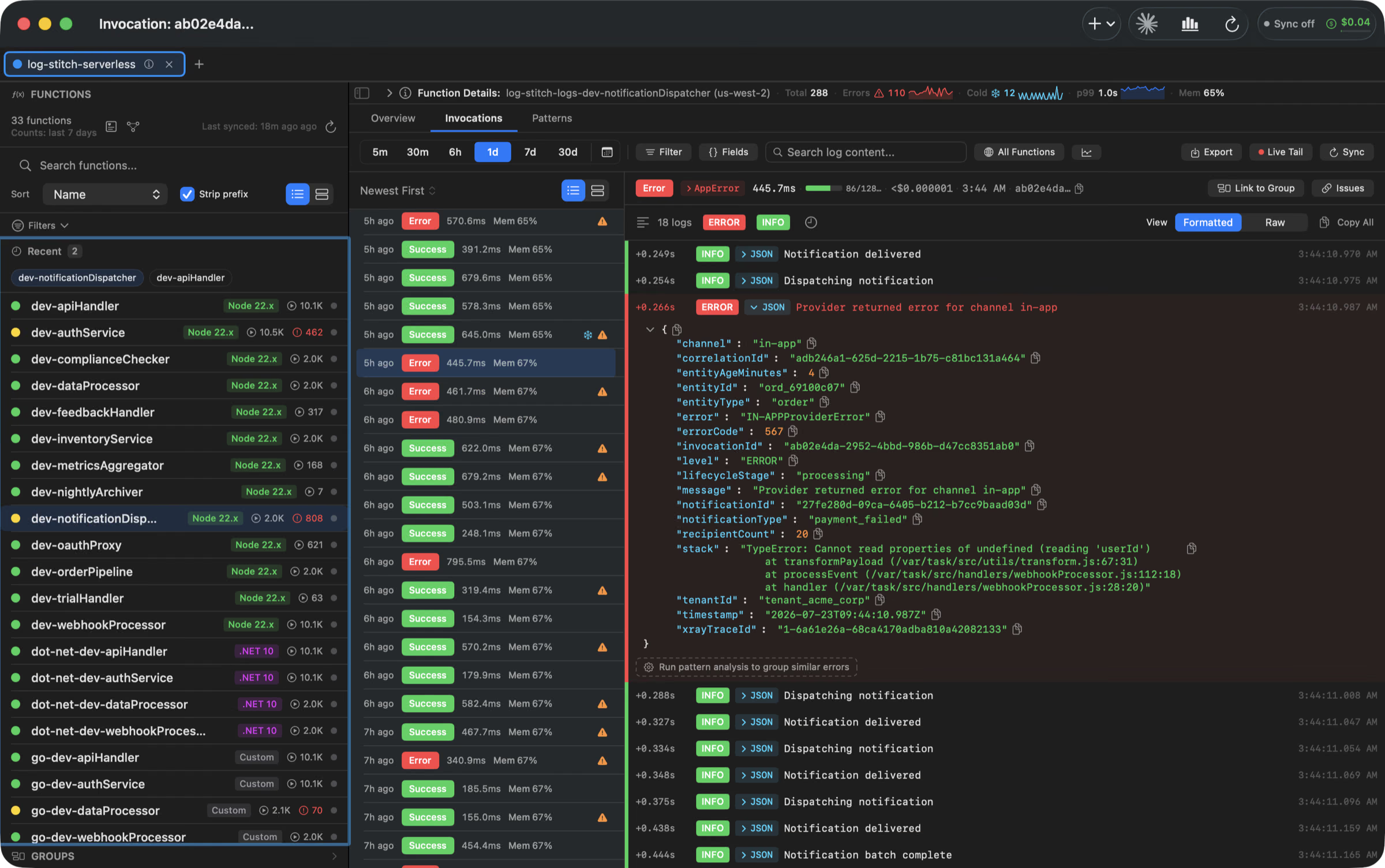
Click the profile in your list and it opens as a color-coded tab. From here, LogStitch automatically discovers the Lambda functions in that account and region — there's no manual "list functions" step. Cached functions appear instantly, then live CloudWatch metrics fill in on top. Your credentials, meanwhile, live in the macOS Keychain; expired SSO or role sessions surface a one-click Refresh. You can see the function navigator on the left of the screenshot in the next step.
Open a function to read stitched logs
Select a function and LogStitch fetches its recent logs and stitches them into invocations by request ID. Instead of scrolling a timestamp-sorted stream where concurrent executions are interleaved, you read one Lambda execution as a single ordered story: every log line in order, parsed JSON, cold-start flags, and duration in one place. That's the whole core loop — add a profile, open it, click a function.
What LogStitch needs from AWS
LogStitch is read-only. It never creates, changes, or deletes anything in your AWS account. It needs just enough access to list your functions, read their logs, pull basic metrics, and confirm which account you're connected to. If you'd rather grant a dedicated, least-privilege policy instead of using broad existing credentials, here's the exact minimum — the same policy is available inside the app under Help → AWS Permissions Required.
{
    "Version": "2012-10-17",
    "Statement": [
        {
            "Sid": "LambdaReadAccess",
            "Effect": "Allow",
            "Action": [
                "lambda:ListFunctions",
                "lambda:ListTags"
            ],
            "Resource": "*"
        },
        {
            "Sid": "CloudWatchLogsAccess",
            "Effect": "Allow",
            "Action": [
                "logs:DescribeLogStreams",
                "logs:GetLogEvents",
                "logs:FilterLogEvents"
            ],
            "Resource": "arn:aws:logs:*:*:log-group:/aws/lambda/*:*"
        },
        {
            "Sid": "CloudWatchMetricsAccess",
            "Effect": "Allow",
            "Action": ["cloudwatch:GetMetricStatistics"],
            "Resource": "*"
        },
        {
            "Sid": "STSIdentity",
            "Effect": "Allow",
            "Action": ["sts:GetCallerIdentity"],
            "Resource": "*"
        }
    ]
}
You can scope the CloudWatchLogsAccess resource down further to specific log groups or regions if you want to restrict LogStitch to a subset of your functions. SSO and assume-role users grant the equivalent permissions on the role they sign in as.
Your credentials stay on your Mac. LogStitch stores them in the macOS Keychain, not on disk or in backups, and every AWS call goes directly from your machine to AWS. There is no LogStitch server that sees your credentials or your logs. See the privacy policy for the details.
Tips for a smooth start
- ↳Use "Test Connection" any time. If a profile ever stops working (say an SSO session expired), the Test Connection button re-validates it and tells you what's wrong.
- ↳Color-code your accounts. Give
proda distinct color so you always know which account a tab belongs to before you act on it. - ↳No functions showing? Lambda is region-specific. If a profile's region has no functions, switch the profile to the region your functions are deployed in.
- ↳Learn the shortcuts when you're ready. Press
⌘/for the keyboard-shortcut cheat sheet — quick search, global search, new tab, switch profile, and more. None of them are required for the core flow. - ↳Not sure about permissions? Open Help → AWS Permissions Required in the app for the exact IAM actions, what each is for, and a copy-and-paste policy.
Getting-started FAQ
How long does setup actually take?
Do I need the AWS CLI installed?
~/.aws profiles for the fastest setup. If you don't, enter an access key and secret manually, or connect with SSO (IAM Identity Center). Any one of the three works.Is it safe to enter my AWS credentials?
What permissions does LogStitch need?
lambda:ListFunctions and lambda:ListTags to discover functions, logs:DescribeLogStreams / logs:GetLogEvents / logs:FilterLogEvents to read logs, cloudwatch:GetMetricStatistics for metrics, and sts:GetCallerIdentity to confirm your account. The full copy-and-paste policy is in the section above.What if my account has no Lambda functions in that region?
Does LogStitch replace CloudWatch?
Ready to see your own Lambdas stitched?
Free 14-day trial. No card, no account, no telemetry. Bring your AWS profiles and read your first invocation in under a minute.